
A weave design has to reach the machine.
Industrial weaving design involves more than presenting an attractive fabric image. The digital draft, yarn arrangement and production sequence need to describe the same intended cloth. A useful CAD/CAM workflow keeps those decisions connected as the design moves from the workstation to a programmer or controller.
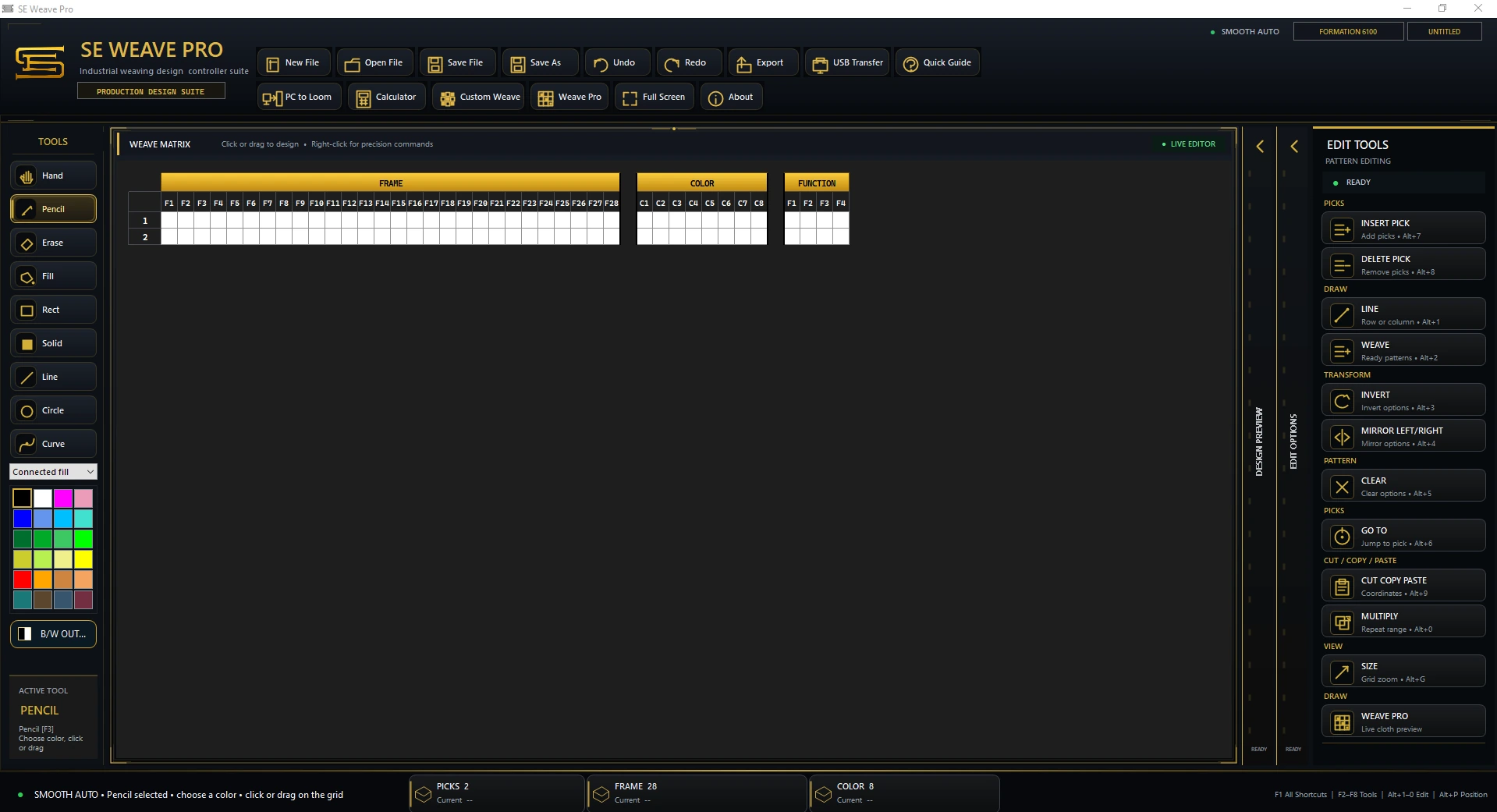
SE Weave Pro is industrial weaving CAD/CAM software developed in Karachi, Pakistan, by Umar Sabir / UmarTronics. It combines a 2D drawdown workspace, 3D structural fabric previews, Yarn Studio, float-length checking and CAM preparation for supported electronic dobby configurations. Its USB and COM workflows provide a transfer route for compatible machine setups.
What CAD and CAM contribute.
Computer-aided design, or CAD, is the part of the workflow where the designer creates and revises the weave. The drawdown, threading, sleying, yarn colours and lifting sequence provide different views of the design decisions. A fabric viewer then helps the designer inspect the appearance and structure of the proposed cloth.
Computer-aided manufacturing, or CAM, prepares the data used by the production equipment. In an electronic dobby workflow, that can include binary lifting information, peg plans and card data. The machine output profile matters: the same design must be represented using the ordering and data layout required by the target configuration.
Use 2D and 3D views for different questions.
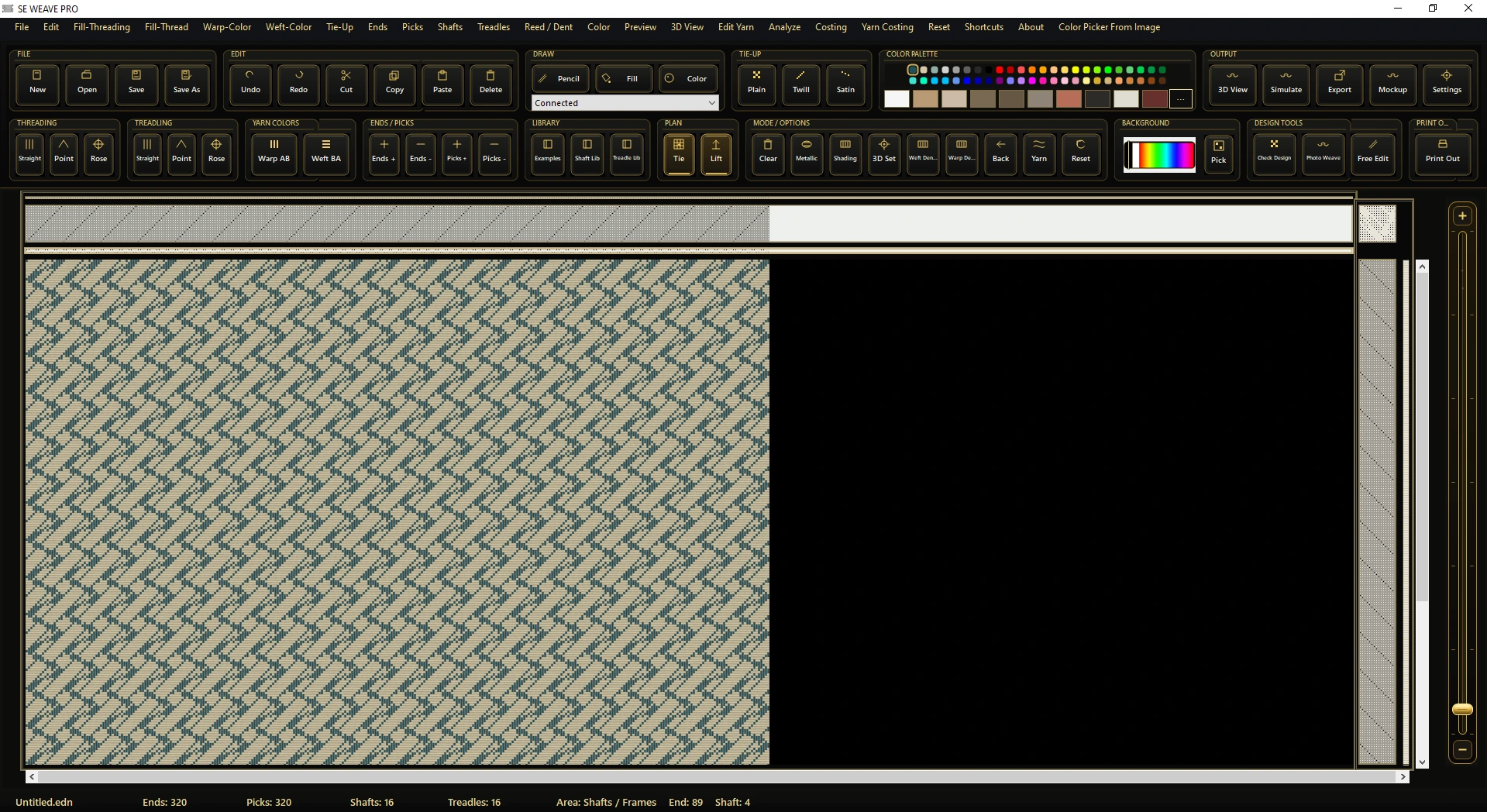
The 2D cloth drawdown is useful for editing and reviewing the weave plan. The 3D structural preview adds a view of yarn crossings and surface detail. Together, these views let the designer move between the complete pattern and a closer inspection of the fabric.
SE Weave Pro separates the main design editor from its fabric viewer. A change to the design can be reviewed visually, while the original draft remains available for further editing. The product page shows the supplied editor and viewer screenshots and fabric preview examples.
Yarn choices shape the character of the cloth.
A weave structure and a colour repeat work together. Changing the yarn appearance or the warp/weft arrangement can change the way a stripe, check or dobby pattern reads across the fabric. Comparing colourways on screen helps the designer choose which versions to take into a sample.
SE Weave Pro’s built-in Yarn Editor provides controls for style, colour, twist, fibres and finish, alongside colourway and warp/weft arrangement settings. These controls let the designer refine the strand and review it in the fabric. The website’s twenty animated yarn material studies are illustrations; the actual Yarn Studio screenshot and source-video previews are labelled separately.
Review long floats alongside the fabric preview.
A float is a run where a thread passes across successive crossing threads before its next interlacement. Reviewing the length of these runs is part of assessing a weave structure. The intended surface, yarns and production requirements determine which runs need attention.
SE Weave Pro includes float-length checking for digital design review. Use the result to inspect long warp or weft runs, revise the draft where needed, and compare the updated cloth preview. Digital diagnostics support this review; the final design should still be checked using the intended production configuration and a representative sample.
Compile machine data, then transfer it through the right interface.
The CAM tools in SE Weave Pro compile binary lifting data, peg plans and card data for supported electronic dobby and programmer configurations. USB and COM port workflows connect the Windows workstation with compatible hardware. Choose the output profile before preparing or transferring the production sequence.
For an installation involving Loom Programmer 6100 or 6200, an electronic dobby controller or a Ciel card, provide the exact model, card details and a sample file. A programmer family name is a starting point; the selected card and controller configuration determine which profile and transfer setup are appropriate.
Keep the design repeat and the intended lifting sequence available while checking the loaded data. This makes a demonstration more useful than evaluating a preview image or file extension alone.
Compare complete workflows, including production tools.
Pointcarre, NedGraphics and ArahWeave offer weaving design and production capabilities. Their official documentation describes loom interfaces or machine-file workflows as well as fabric simulation. A meaningful comparison should consider those capabilities alongside the requirements of your own mill.
SE Weave Pro provides a locally developed alternative with a connected design, yarn, preview, diagnostic and electronic dobby CAM workflow. Evaluate the supported output profiles, Windows setup, installation, perpetual licence scope, update terms and support alongside the tools you need for daily design work.
The weaving software guide links to each provider’s official product information. Ask for a demonstration using your own design and target machine before choosing a configuration.
Bring your real workflow to the demonstration.
For a weaving team in Karachi, Faisalabad, Gujranwala or another manufacturing location, a representative design provides a clear basis for discussion. Use the same design through the editor, yarn controls, preview, diagnostics and output stage.
- Design: check the drawdown, threading, sleying, repeat and lifting sequence you need to edit.
- Yarn and preview: compare your colour arrangements and review the fabric at complete-pattern and close-up scales.
- Float review: inspect the long runs identified by the checker and the effect of any draft changes.
- Machine data: confirm the output profile, target programmer or card, and USB/COM transfer setup.
- Installation and support: discuss Windows 10/11 64-bit requirements, the perpetual licence scope, updates and support terms.
Contact UmarTronics with your file format and machine details to arrange a focused demonstration. The official software demonstrations provide an introduction to the workspaces and preview tools.
Product information and sources.
This article is published by UmarTronics, the developer of SE Weave Pro. SE Weave Pro capability information is supplied by the developer. The descriptions of other products are based on their official documentation, checked on 2 October 2026.